How to Filter Applications & Options

Effective filtering helps you quickly find the applications you need. SavvyMoney provides powerful filtering options to manage your workflow efficiently.

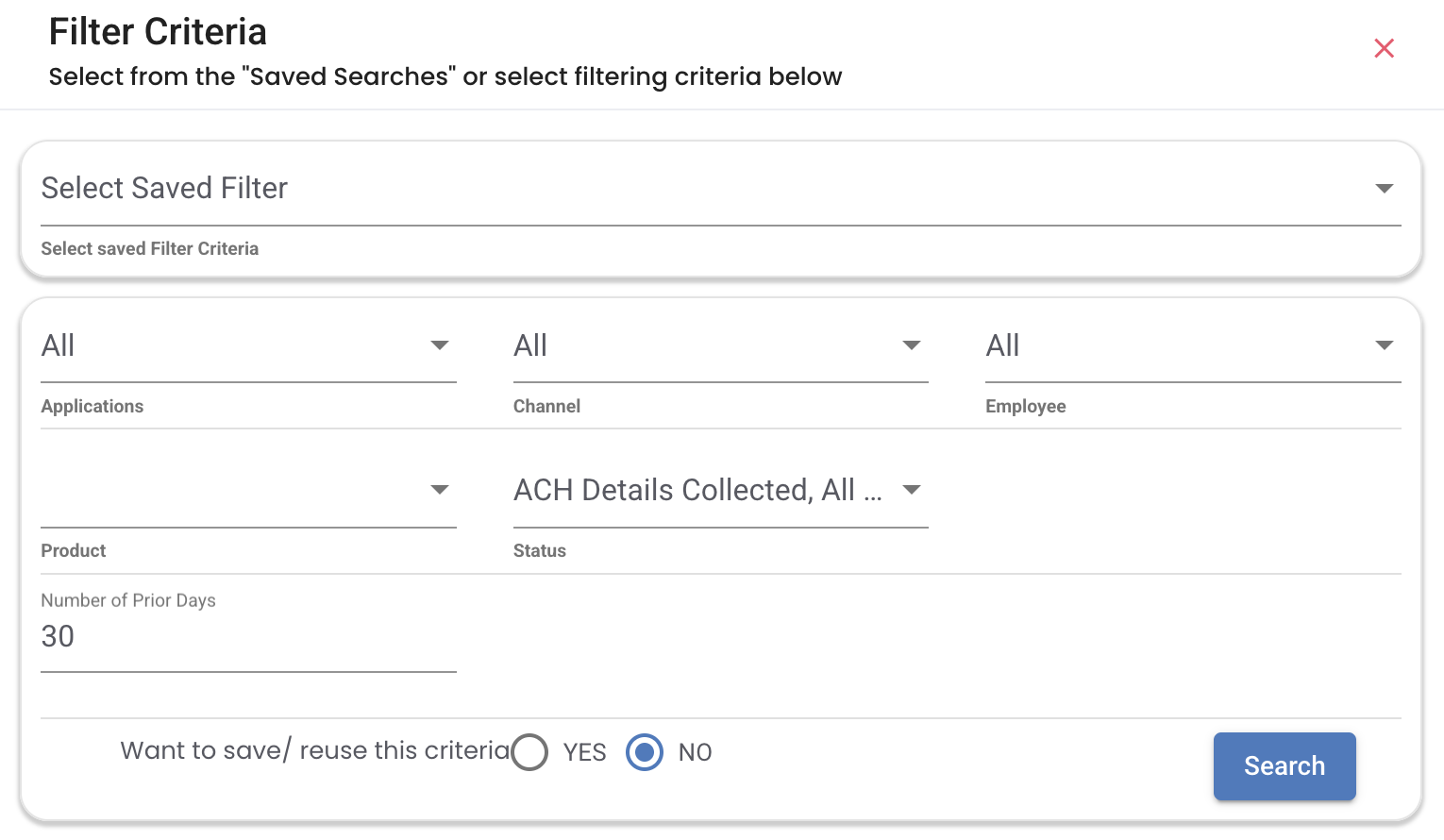
Filter Panel

The filter panel is located on the left side or top of the application queue. Access it by clicking the Filter button or funnel icon.

Basic Filters

FilterDescriptionExample
StatusApplication statusPending, Approved, Declined
ProductLoan or account typeAuto Loan, Personal Loan, Checking
Date RangeApplication date rangeLast 7 days, This month, Custom
Assigned ToAssigned userMe, Unassigned, Specific user
BranchOriginating branchMain Branch, Online

Advanced Filters

FilterDescriptionExample
Amount RangeLoan amount range$5,000 - $25,000
Credit ScoreApplicant credit score range680 - 750
DecisionUnderwriting decisionAuto-approved, Manual review
StipulationsStipulation statusHas outstanding, All complete
SourceApplication sourceOnline, Branch, Partner

Using Filters

Single Filter

To apply a single filter:

  1. Click the Filter button
  2. Select the filter category (e.g., Status)
  3. Choose the value (e.g., Pending)
  4. Click Apply

Multiple Filters

Combine filters for precise results:

  1. Apply the first filter
  2. Click Add Filter or +
  3. Select additional filter criteria
  4. Filters combine with AND logic
Filter Logic

Multiple filters use AND logic by default. For example:

  • Status = "Pending" AND Product = "Auto Loan"
  • Shows only pending auto loan applications

Date Range Filters

Filter by date with preset or custom ranges:

Preset Options:

  • Today
  • Yesterday
  • Last 7 days
  • Last 30 days
  • This month
  • Last month
  • This quarter
  • This year

Custom Range:

  1. Select "Custom Range"
  2. Pick start date
  3. Pick end date
  4. Click Apply

Search Options

The search bar at the top allows instant searching:

┌────────────────────────────────────────────────────┐
│ 🔍 Search by name, app ID, SSN, phone... │
└────────────────────────────────────────────────────┘

Searchable Fields:

  • Application ID
  • Applicant first/last name
  • Social Security Number (last 4)
  • Phone number
  • Email address
  • Employer name

Access advanced search for more options:

  1. Click Advanced Search next to the search bar
  2. Fill in specific field criteria
  3. Click Search
FieldFormatExample
App IDAlphanumericAPP-2024-001234
SSNLast 4 digits1234
Phone10 digits5551234567
AmountRange10000-50000
DateMM/DD/YYYY01/15/2024

Saving Filter Presets

Save frequently used filter combinations:

Create a Preset

  1. Apply your desired filters
  2. Click Save Filter or the bookmark icon
  3. Enter a name for the preset
  4. Click Save

Use a Preset

  1. Click Saved Filters dropdown
  2. Select your preset
  3. Filters apply automatically

Manage Presets

  • Edit - Modify saved filter criteria
  • Rename - Change preset name
  • Delete - Remove unused presets
  • Share - Share presets with team (if enabled)

Column Sorting

Sort the application queue by clicking column headers:

ClickResult
Single clickSort ascending (A-Z, oldest first)
Double clickSort descending (Z-A, newest first)
Third clickRemove sort

Multi-Column Sort

Hold Shift and click additional columns to sort by multiple criteria:

Primary sort: Status (ascending)
Secondary sort: Date (descending)

Export Filtered Results

Export your filtered application list:

  1. Apply desired filters
  2. Click Export button
  3. Choose format:
    • CSV - Spreadsheet compatible
    • Excel - Microsoft Excel format
    • PDF - Print-ready document
  4. Select columns to include
  5. Click Download
Export Limits

Large exports may take time to process. Consider narrowing filters for faster exports.

Filter Best Practices

Daily Workflow

Create saved filters for common daily tasks:

Preset NameFiltersUse Case
My PendingAssigned=Me, Status=PendingYour work queue
Needs DocsStipulations=OutstandingFollow up on documents
Ready to FundStatus=Approved, Docs=CompleteProcess funding
Today's AppsDate=TodayNew applications

Team Management

Managers can use filters to monitor team performance:

  • Unassigned - Applications needing assignment
  • By User - Individual team member queues
  • Aging - Applications over X days old
  • Escalated - Applications needing attention

Troubleshooting Filters

No Results Found

If filters return no results:

  1. Check for conflicting filters
  2. Expand date range
  3. Verify filter values are correct
  4. Clear all filters and start over

Filters Not Saving

If filter presets don't save:

  1. Ensure you have permission to save filters
  2. Check browser cookies are enabled
  3. Try logging out and back in
  4. Contact administrator if issue persists

Slow Filter Performance

If filtering is slow:

  1. Reduce date range
  2. Use fewer simultaneous filters
  3. Clear browser cache
  4. Check network connection

For deposit-specific filtering, see Deposit Dashboard.